
 Dynamics 365 Sales Email Attachment Tracking isn’t working.
Yep. Here’s why, and what to do instead.
As a Microsoft Partner, I’m usually the first to praise this tech stack due to all the incredible stuff you can do with it. BUT I also recognize Microsoft drops the ball in some really weird ways. In this case, their marketing and documentation about Email Tracking in Dynamics 365 Sales.
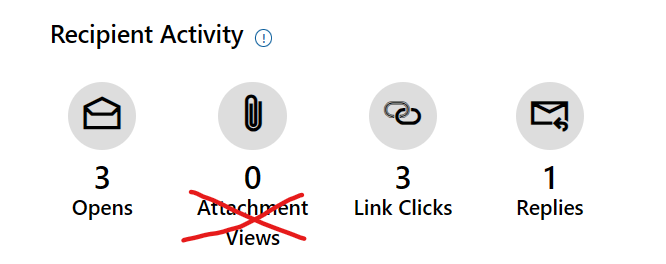 From a sales perspective, it it sure would be ideal to see if your attachments were opened. And Dynamics email tracking makes it seem like it’s very easy to accomplish. Dedicated form real estate on sent emails and columns in the table. But it’s effectively useless. If you have been staring at a permanent zero in the Attachment Views column and wondering what you broke, you did not break anything. The feature simply does not work in modern D365 environments, and Microsoft’s own documentation does not make that clear… maddenly so. And, oddly enough, there’s near zero online talk about this.
 TL;DR Copilot Summary
Dynamics 365’s “Attachment Views” tracking feature doesn’t actually work in modern environments—it will always show zero because Microsoft has locked the required setting and effectively deprecated the underlying functionality.
Instead, the supported approach is to share documents via SharePoint or OneDrive links and rely on link-click tracking, which still works alongside email opens and replies.
You set up email engagement in Dynamics 365 Sales. Email opens are tracking. Link clicks are tracking. Replies are tracking. But Attachment Views? Always zero. You check your setup, verify permissions, follow the Microsoft docs step by step. Still zero. You open a support ticket, spend a week going back and forth, and eventually get told in very carefully chosen words that the feature just does not work anymore.
That is a frustrating place to land. Here is a straight answer on what is actually happening, why the docs are misleading, and how to get real document engagement data out of D365 today.
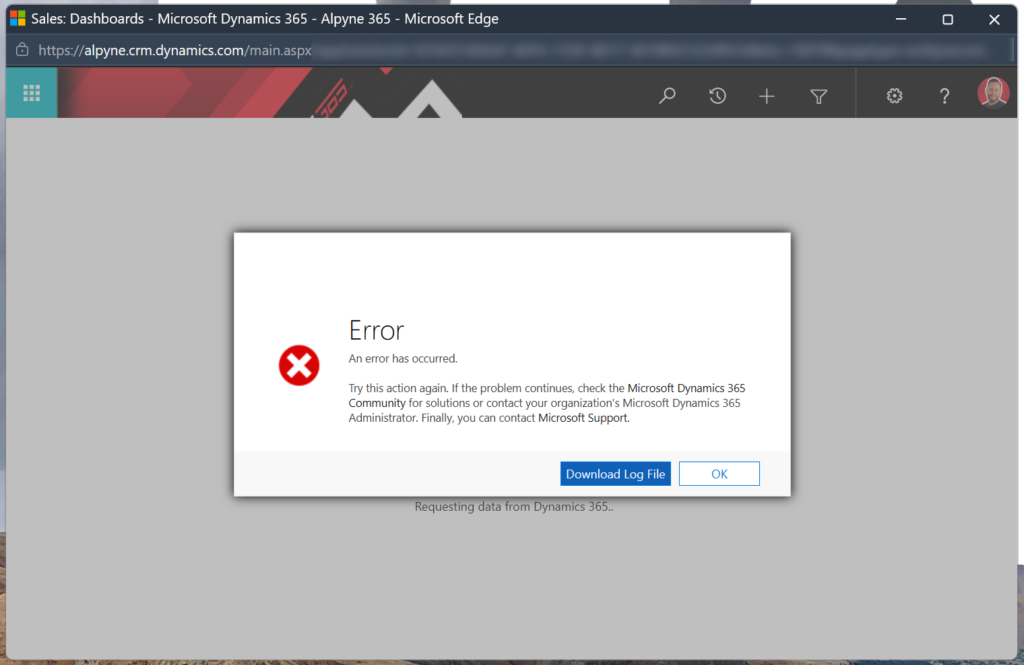 The “Attachment Views” field is visible in the UI and appears in Microsoft’s documentation as an active feature. In any modern D365 environment, it will always show zero. The setting required to enable it is locked by Microsoft and cannot be changed. Yes, I know Microsoft’s own documentation states a rather simple process to follow. It is wrong. For modern Dynamics environments, anyway. If you’re clever and know where to go to flip the switch they outline, you’ll be greeted with a big fat error as it is a managed setting and you are not able to change it.
How attachment tracking used to work
In older versions of Dynamics 365, each email attachment had an individual “Follow” toggle. When you enabled it, something a little counterintuitive happened: the file was pulled out of the email, uploaded to the sender’s OneDrive, and replaced in the email body with a shared link. When the recipient clicked that link, D365 logged it as an Attachment View. Clever under the hood, not exactly obvious to the user, but functional.
That whole flow depended on a setting called “Use new email attachment control” being disabled. In modern D365 tenants, including anything set up in 2024 or later, that setting is enabled by default and locked. You cannot turn it off. When you try, you get an error. Microsoft support confirmed this directly during a screen-share investigation: the setting is managed by design and the error is intentional.
From the horse’s mouth: here’s what Microsoft actually said
After opening a formal support ticket and going through a screen-share session with a Microsoft Dynamics 365 support engineer, the official answer was this: “Attachment Views only populate when attachments are ‘followed,’ and the enhanced attachment control prevents attachments from being followed. Since that control is locked on in modern environments, Attachment Views will always be zero.”
This part’s pretty irritating. Microsoft’s exact framing was that the feature is “not deprecated” but is “only populated under specific conditions.” Those conditions happen to be unreachable in any standard modern setup. If that sounds like deprecation with extra steps, that is because it basically is. If something was once usable on old versions of Dynamics and simply canNOT be used in modern versions, what else would you call that? I digress.
The metrics that actually work in D365 today
How to track document engagement right now
The approach Microsoft confirmed as the supported path: upload your files to SharePoint or OneDrive, then insert the shared link directly into the email body instead of attaching the file. When the recipient clicks that link, D365 records it as a link click. That data shows up in the email engagement panel just like any other tracked link.
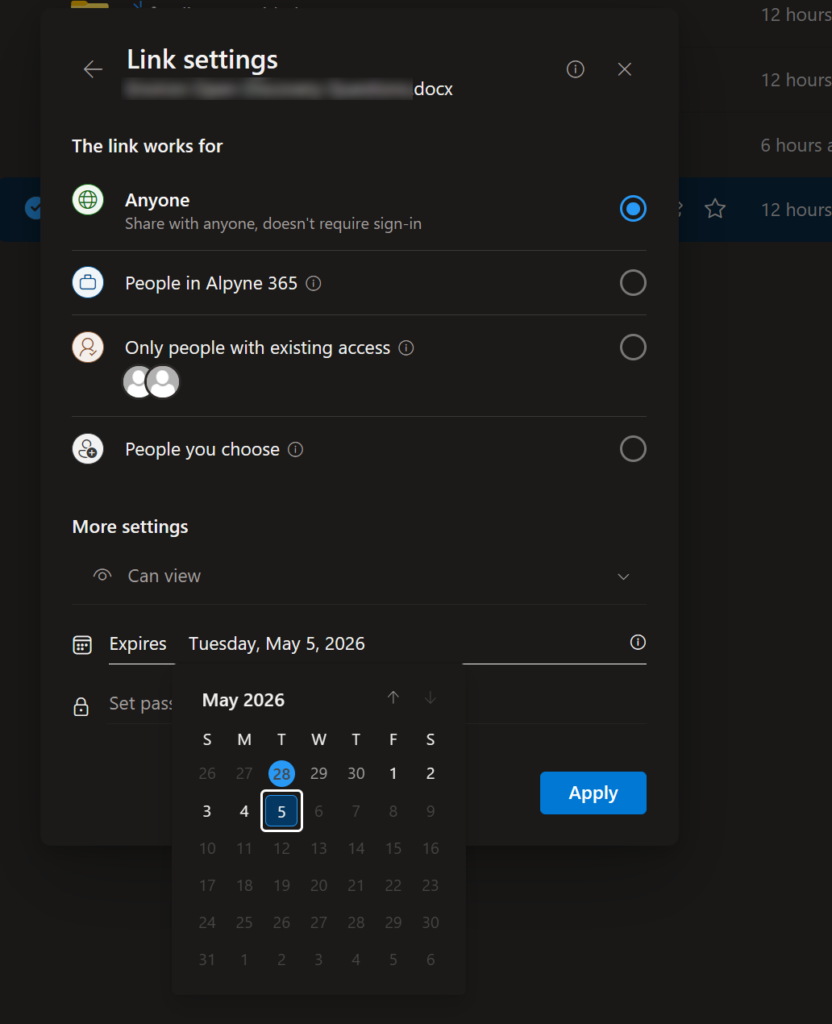
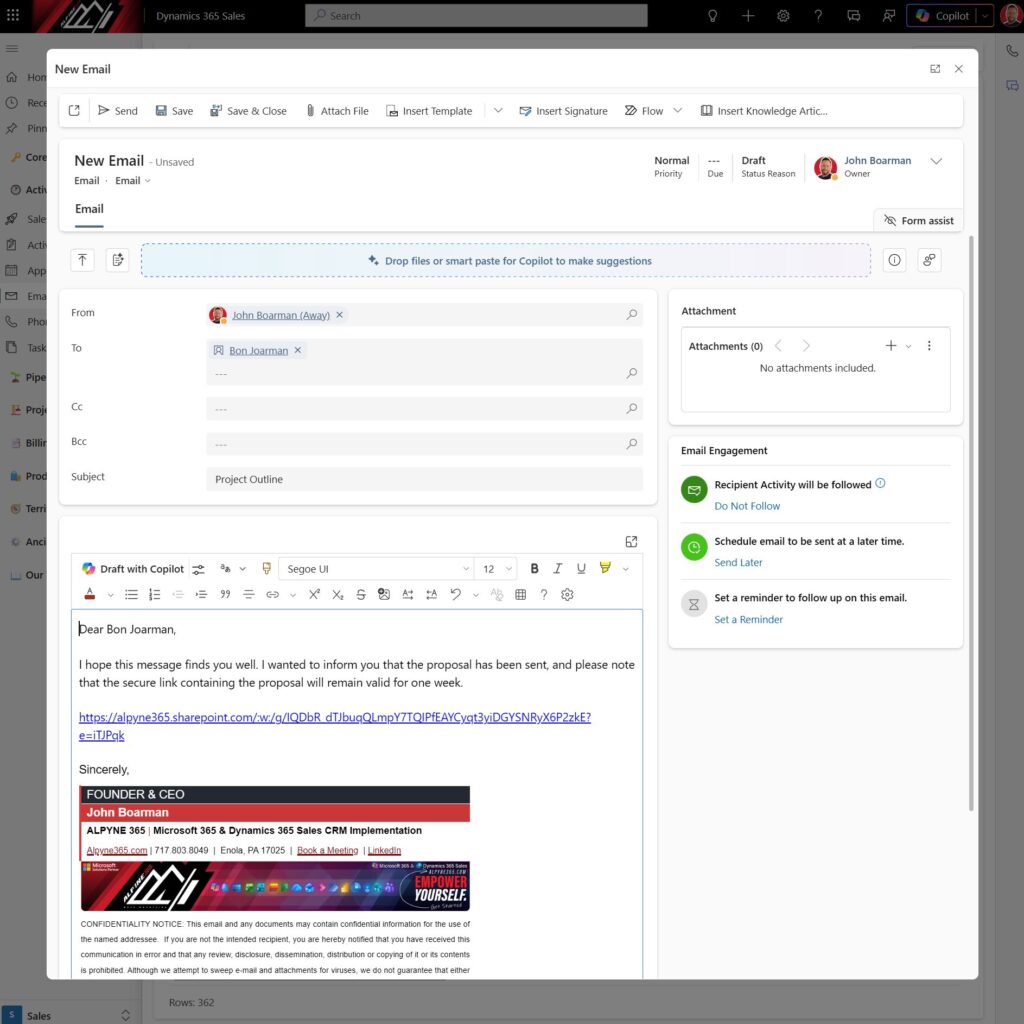
This is not a workaround, exactly. Per Microsoft’s own support response, this is the intended model going forward. The old follow-attachment behavior was the legacy path. Link-based sharing is the current design. For any sales team that wants to know whether a prospect opened their proposal or product sheet, this is how you get that signal today.
The bottom line
Attachment Views will always be zero in modern D365. Stop troubleshooting it. Don’t waste hours researching it or days navigating Microsoft support conversations. Just upload documents to SharePoint or OneDrive, share them as links in the email body, and track engagement through link clicks instead.
Bonus topic: You cannot track email forwards either. But you can get clever.
Forward tracking is another one of those features that sounds like it should exist and does not. No major email platform supports it reliably, including Microsoft, Google, and Apple. The reasons are both technical and practical.
On the technical side, when someone forwards an email, the tracking pixel and link parameters embedded in the original message do not carry over in a way that ties the activity back to the original send. A new email client renders a new instance, and any opens or clicks from that point on look like activity from the original recipient, not a forwarded copy.
On the privacy side, email providers have actively worked to prevent this kind of cross-recipient tracking. It is partly why pixel-based open tracking itself has become less reliable, with clients like Apple Mail prefetching pixels by default. The infrastructure for forward tracking would require cooperation from the recipient’s mail client, which is never going to happen at scale.
That said, you can build a pretty useful signal out of what you do have. If an email was sent to two recipients and D365 shows six opens, something happened. Either someone is very interested, or the email got forwarded. Either way, that is a lead worth prioritizing.
Build a calculated column in your D365 email view that flags emails where the open count significantly exceeds the recipient count. Something like: if Opens divided by Recipients is greater than 2, mark it as “High Interest / Likely Forwarded.” This does not tell you who forwarded it, but it surfaces the business signal you actually care about: renewed or expanded interest in a deal. A rep who sees that flag knows to follow up, which is the whole point.
You can take this further. Add a custom view or dashboard tile that shows only emails with that flag active. Build a Power Automate flow that creates a follow-up task automatically when the ratio crosses your threshold. The data D365 gives you is limited, but the logic you build on top of it does not have to be.
Still wrestling with D365 or Microsoft 365?
I spent a a lot of time chasing this exact issue down a rabbit hole, opened a formal Microsoft support ticket, got on a screen share with their engineers, and wrote this post because the answer was nowhere online. And it became about the principle and I didn’t bill for this investigation. I’m hoping this post saves someone out there from chasing their tail or promising something that’s not quite accurate. That is kind of how I operate.
Alpyne 365 is your Microsoft Partner specializing in Dynamics 365 and Microsoft 365 implementations for small and mid-size businesses. Whether it’s CRM configuration, email engagement setup, SharePoint document systems, or automating the workflows your team is currently doing by hand, this is what I do every day. I know how to leverage these technologies to solve an immense number of problems that often plague businesses small and large.
If your team is running into things like this, where the platform should be doing more than it is and nobody can give you a straight answer, that is exactly the kind of problem worth a conversation. No pitch, no pressure. Just an honest look at what is going on and whether there is a path to fix it.